When Slido is used with a University of Tokyo account, users are eligible for advanced event settings that are unavailable in free accounts. The settings can be changed by selecting “Settings” in the upper-left corner of the event host’s screen. The host screen can be accessed from the event list page.
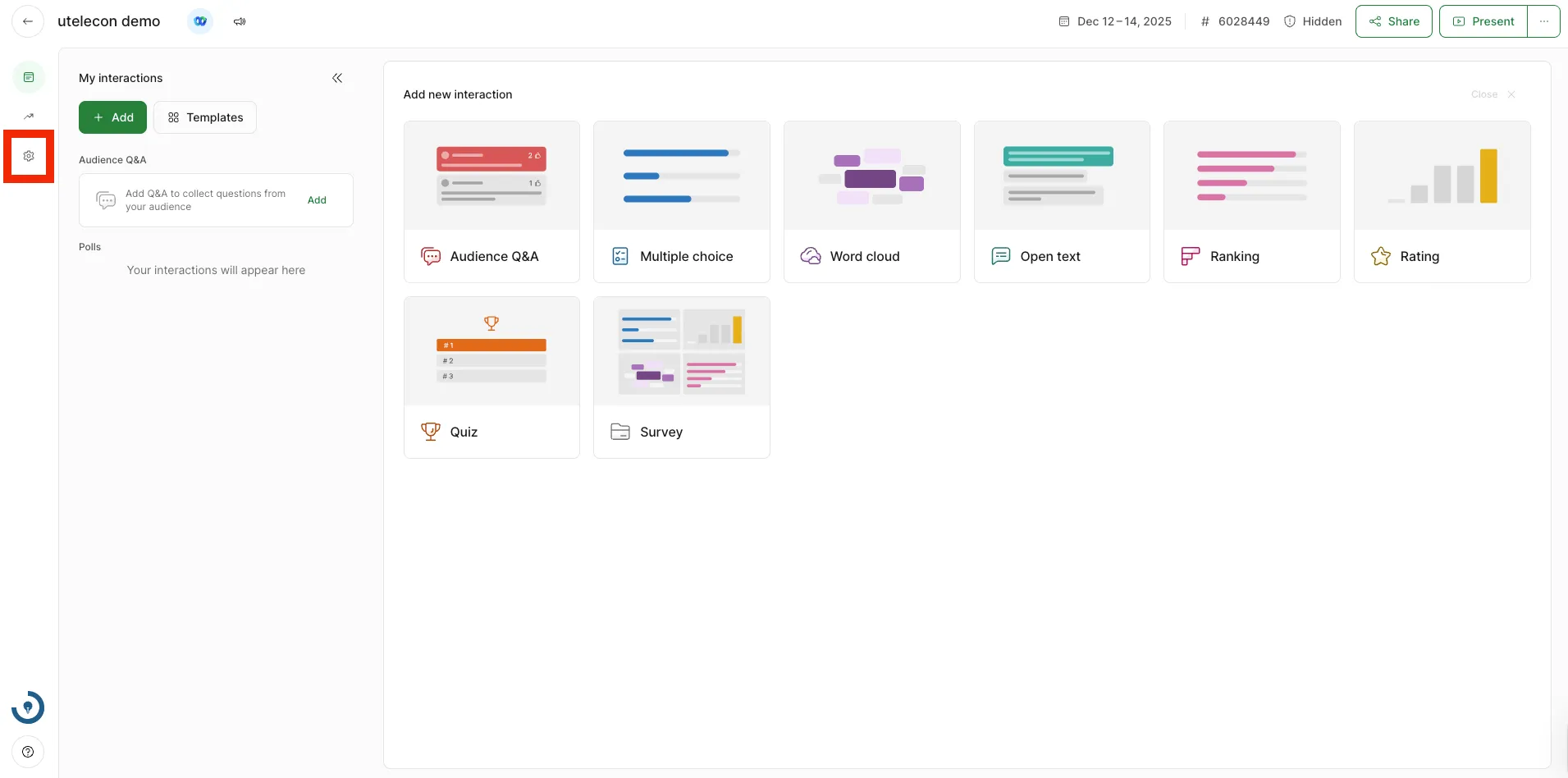
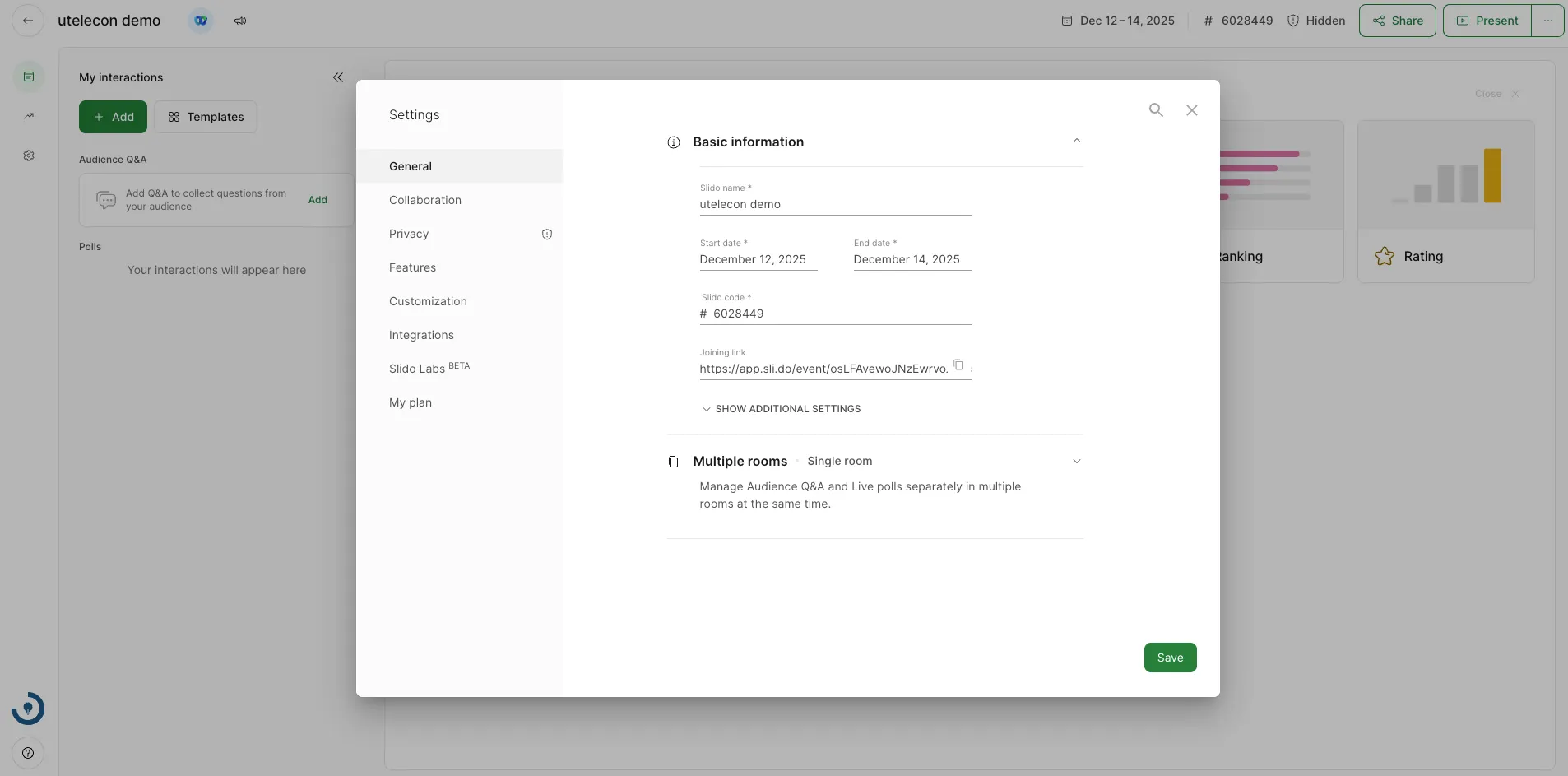
This page describes the settings that need to be checked, particularly when Slido is used in class.
- General
- Basic information: Basic information, such as event name, start date, and end date, can be edited.
- Language: You can set the language displayed to participants. To display in English, click “SHOW ADDITIONAL SETTINGS” under “Basic information”, select “English (US)” from “Language”, and save.
- Multiple rooms: Multiple groups can be created within an event.
- Collaboration
- Add co-hosts Co-hosts (members who comanage the event, similar to Zoom’s alternative host) can be added. When Slido is used in a class, it is recommended to set members, such as teaching assistants, as co-hosts.
- Privacy
- Hidden from search: Users can prevent the site from showing up in search results, such as Google. It is recommended to turn this on when Slido is used in class.
- Require authentication: Participants may be required to enter their names, email addresses, and event-specific passcodes to join an event.
- Features
- Live polls
- Fixed order of poll options: When this setting is enabled, the choices in the poll will be fixed in the order they were created.
- Vote counter: When this setting is enabled, the number of voters will be displayed.
- Poll results: When this setting is enabled, the display of voting results can be switched from percentages (%) to the actual number of votes.
- Live polls