This page describes how to create an event using Slido.
- Log in to Slido and go to event list page.
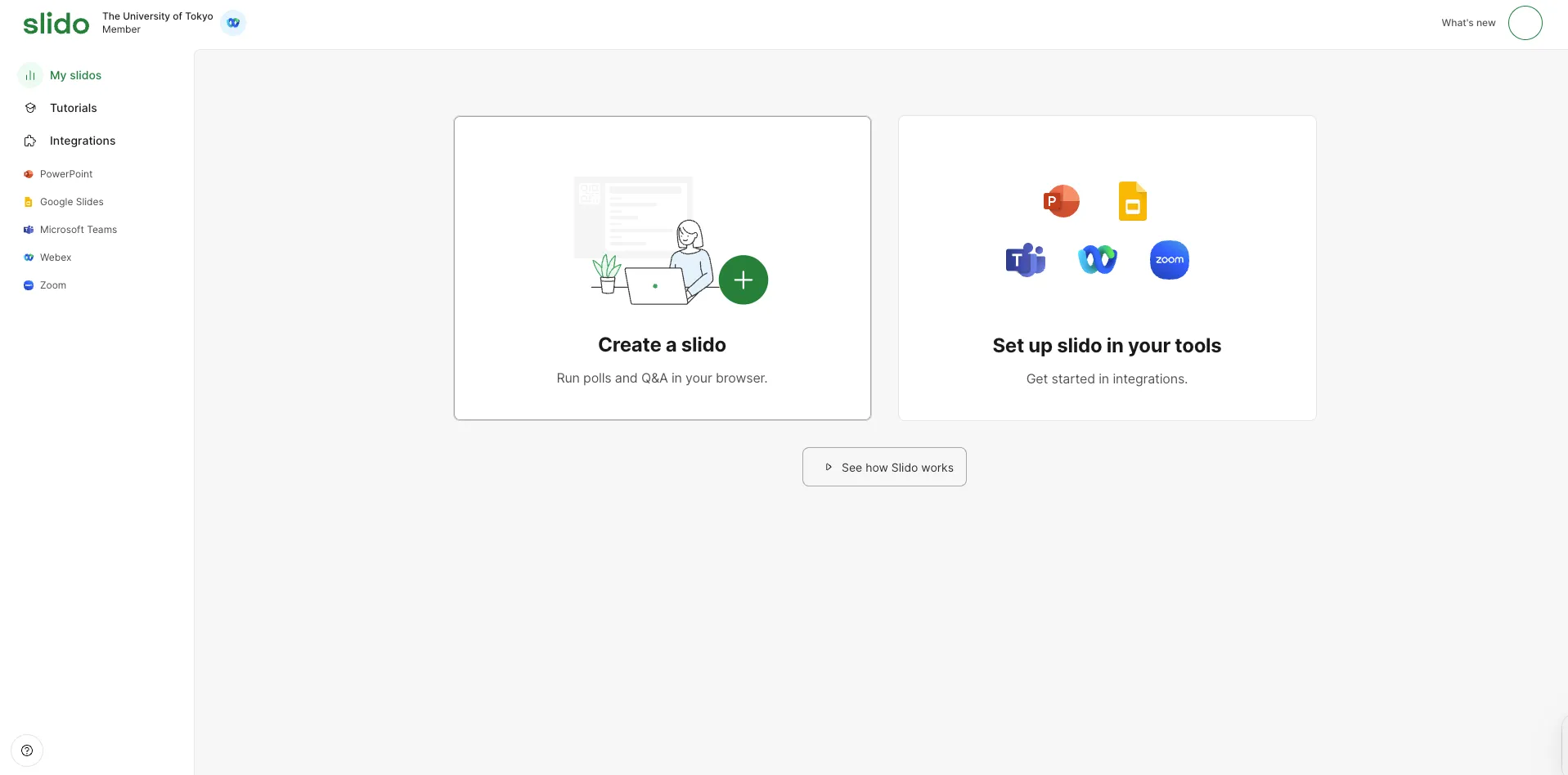
- Slido is free, but if you log in to a UTokyo Account, you can use its paid features. It is recommended that you log in with your UTokyo Account when using Slido in class.
- Select “Create a slido” on the screen, and then enter the event start date in “Start date,” the event end date in “End date,” and the event name in “Give your slido a name.” By selecting “Add your slido to a space,” you can choose a space (a shared workspace for organizing events) where the event will be held.
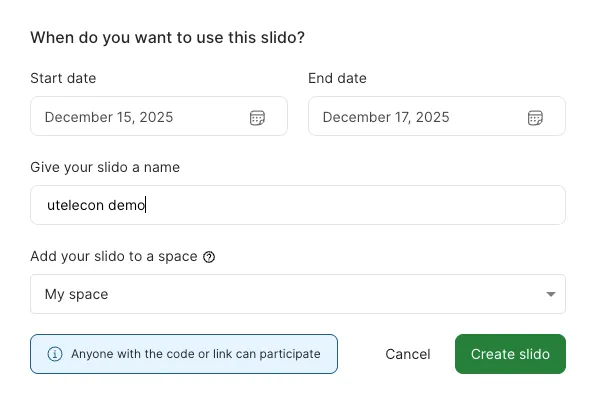
- Click “Create Slido” to create an event. Click the “Share” button on the upper right of the event screen, and then press the “Copy joining link” button in the pop-up that appears to copy the URL of the event to the clipboard. Please share the copied URL with event participants. Participants can join the event by accessing the URL.
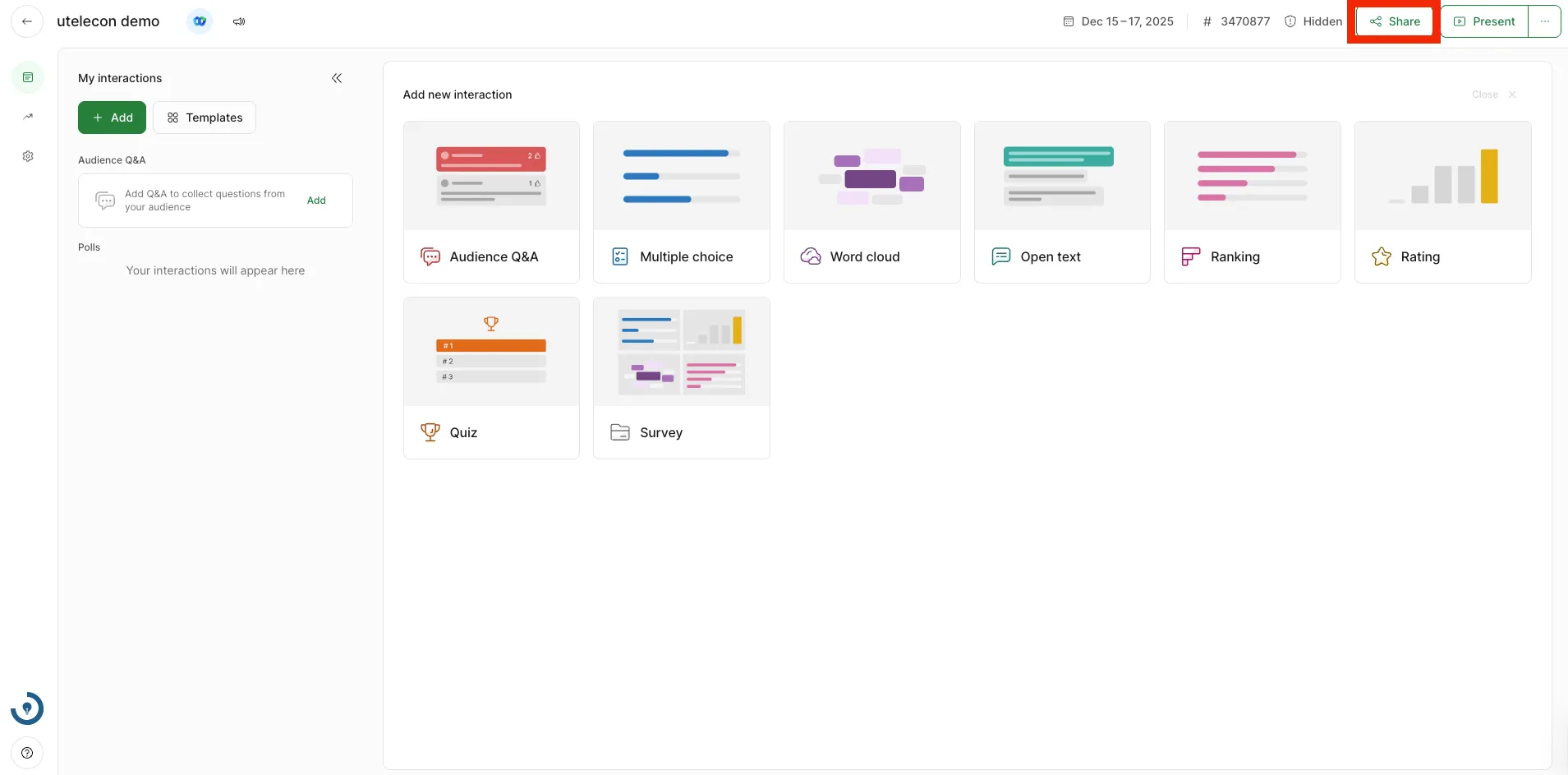 The event information can also be shared as follows:
- Share by QR code: Click the “Share” button on the upper right of the event screen to display the “Download QR code” button. Click this button to save the QR code that participants can scan to join the event.
- Share by event code: Share the 7-digit number starting with
#shown at the top of the event screen with the participants. Participants can join the event by typing the event code on the Slido website.
- When an event is created, Q&A and polls are not created by default. Please create them manually as needed. For creation procedures, please refer to “What Hosts Can Do in Slido”.
After creating an event, you can access the event settings page to configure more advanced settings. For more information, please see “Change Event Settings in Slido” .